Guide › Chapter 2
Import your collection
Tell the site which heroes you own, at what level, and how many copies — by taking a few screenshots of your roster instead of typing seventy-odd heroes in by hand.
The short version — all six must be true
Below: 4 short steps, one at a time.
- Graphics Quality is set to High — once, in the game's Settings
- You are on Training → Barracks — not the Collection tab
- You tapped Recall All — the battlefield is empty
- Your roster is Stacked — every hero shows a ×N number, and there are no green arrows
- You screenshot the whole roster, top to bottom — each shot starts with the last row of the one before, down to the very last row
- You upload every screenshot together, in one import — each import replaces your whole collection
Step 0 · once
Set Graphics Quality to High
On Low or Medium the game draws hero cards with fewer details, and our reader gets more of them wrong. It matters most here: a collection import reads three things off every card, across a dozen screenshots. You only do this once.
- Tap the ☰ button, top-right of the home screen.
- Choose Settings.
- Scroll the list down. Tap the › arrow next to Graphics Quality until it reads High.

Changed it just now? Close and reopen the screen you're capturing so it redraws at the new quality.
Step 1
Get your roster ready in the game
Six taps, and your roster isn't even on screen until the third. The numbers in the animation match the six steps written out below it.

From the home screen, tap Training
Bottom-left corner, the target-and-dart icon.
Tap Barracks
Bottom-left again, under Deploy. This is the step people miss: your roster isn't on screen until Barracks opens it as a drawer along the bottom.
Open Features — the four-squares icon
It's in the roster's toolbar, second from the right, next to the ✕. This panel holds both of the settings you need.
Tap Recall All
Every deployed hero comes back into the roster. Heroes still standing on the field aren't in the roster list, so they'd be missed entirely — and a missed hero reads as a deleted hero at the end.
Confirm
It asks "Recall all troops in this formation?" — tap Confirm.
Make sure the roster is Stacked, not Separate
Still in that Features panel — look at the second tile. It names the mode your roster is currently in.
You want it to read “Stacked”. Stacked means duplicates collapse into one card with a ×N count — so two level-6 copies of a hero show as one card marked ×2. That count is exactly what we read. If the tile reads Separate, tap it once.
The quickest way to tell is your own roster — look at the top-right corner of the cards:
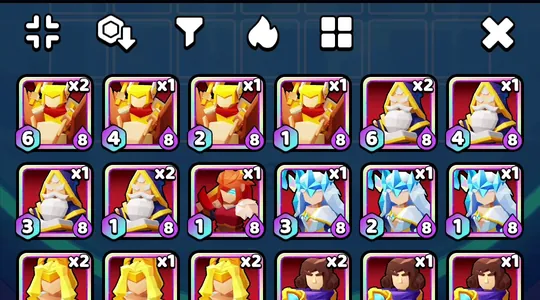 copy count
✓ Stacked — every card has a ×N
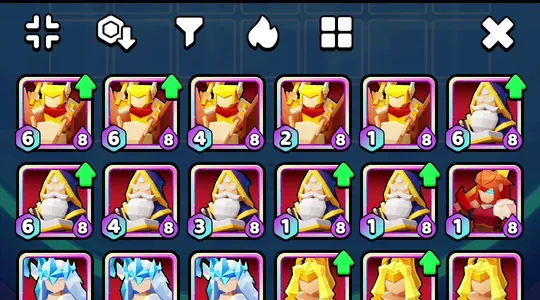 green arrow, no count
✗ Separate — green arrows, no ×N
In the Stacked picture every card carries a ×N count. In the Separate one the cards show a green arrow instead and there is nothing for us to count — if you see those arrows, switch to Stacked.
Step 2
Screenshot the whole roster
Your roster is now complete and stacked. Two things left before you upload.
Expand the roster
Close the Features panel and tap the first icon in the toolbar, far left. The drawer grows upward and shows far more heroes at once, which means fewer screenshots and less chance of missing one.

Screenshot the whole roster, top to bottom
- Screenshot the top of the roster.
- Scroll down slowly until the last full row of that screenshot sits at the top, just under the toolbar.
- Screenshot again.
- Repeat until you reach the end. Your last screenshot must show the very last row.
So every screenshot starts with the row the previous one ended on. The two below are an example of the first two shots; most rosters need a few more.
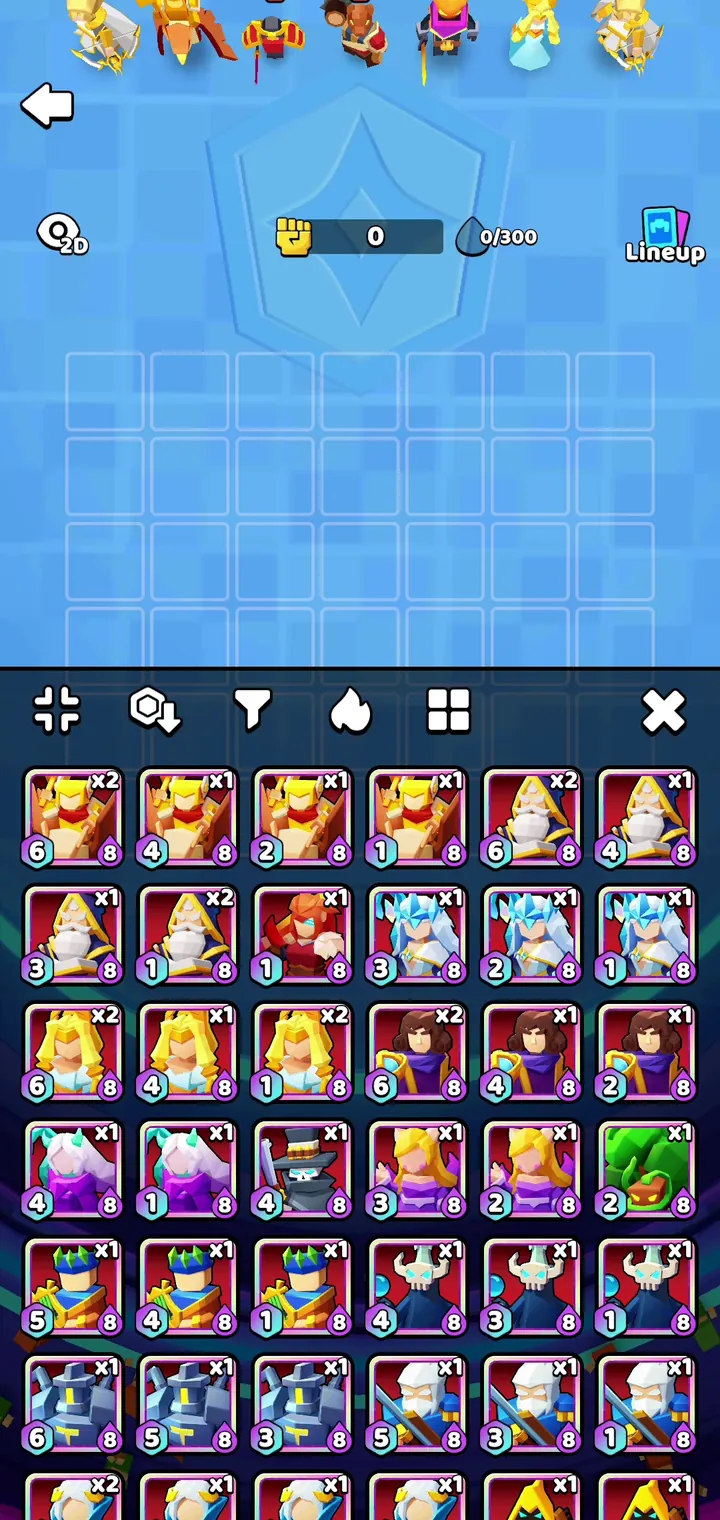 0/300 — field is clear
last full row
0/300 — field is clear
last full row
Shot 1 — top of the roster
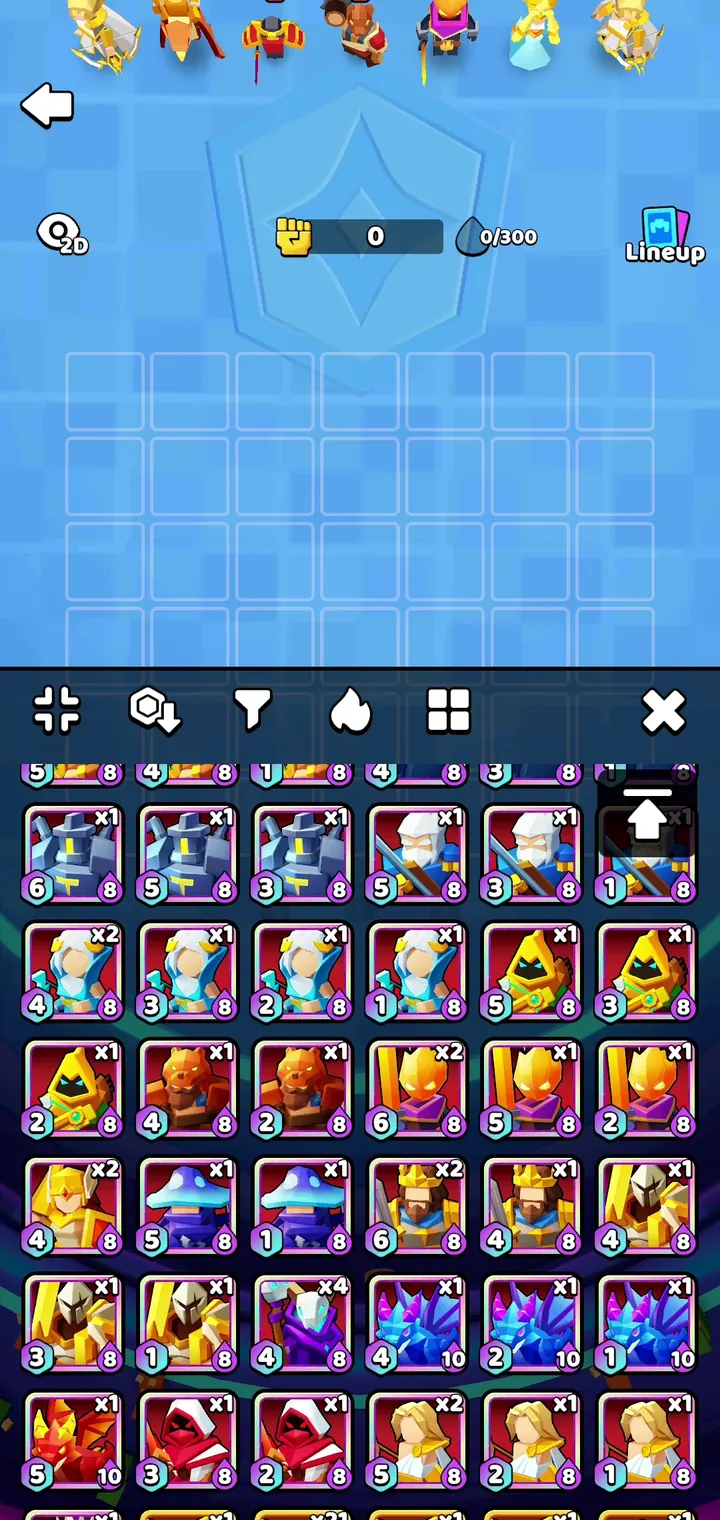 same row, now first
arrow hides a hero
same row, now first
arrow hides a hero
Shot 2 — after scrolling
These screenshots won't work
Four common mistakes. The first two are stopped before anything is read; the other two go through, but leave heroes out.
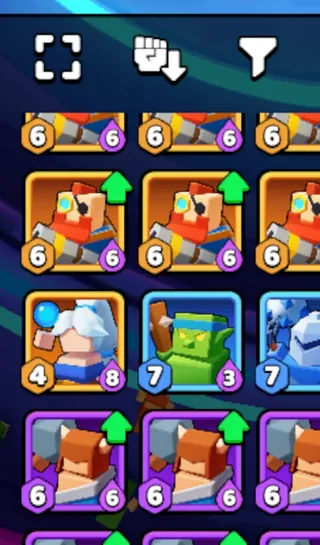 NO
NO
Separate roster
Green arrows on the cards. The import stops and asks you to switch to Stacked
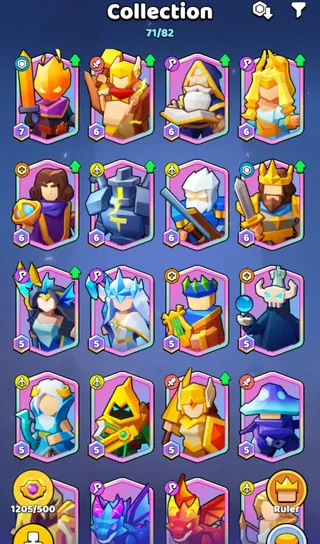 NO
NO
Collection tab
Not the Training roster. The import stops — use Training → Barracks
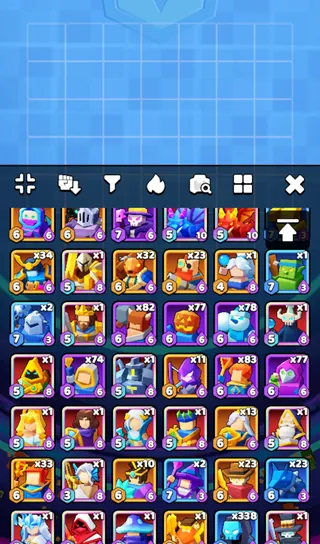 NO
NO
No overlap
Scrolled too far. The rows you skipped show up as removed heroes
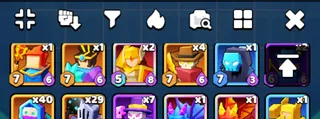 NO
NO
Cut-off shot
Only the cards in it are read; every other hero shows as removed
The cut-off tile is a real screenshot cropped on purpose, so you can see the failure rather than read about it.
Step 3
Upload and confirm
Upload all of them at once
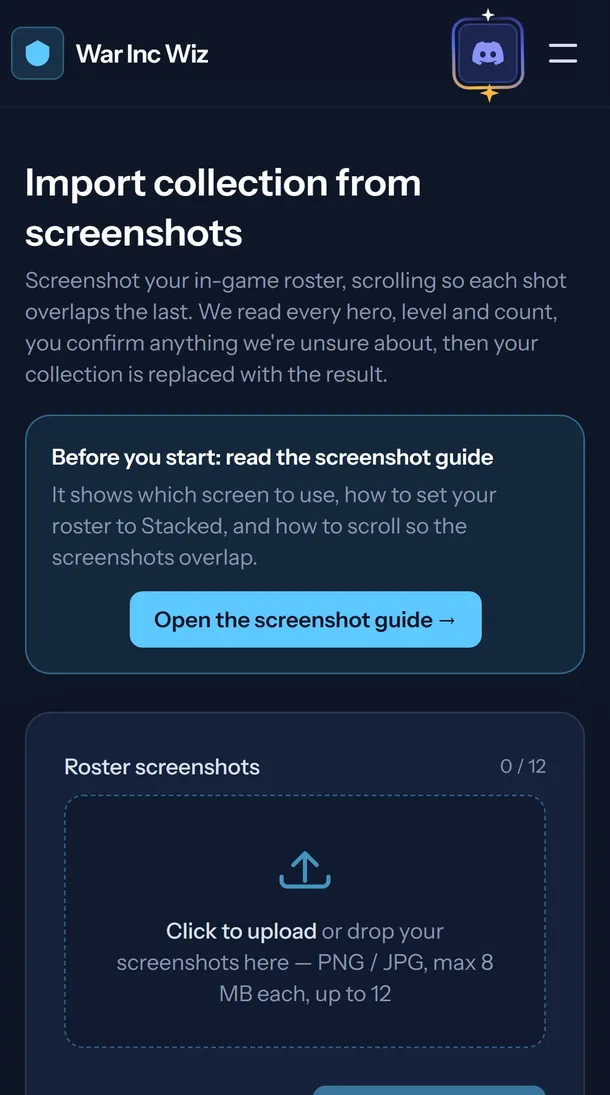
Open your account menu and go to My collection, then Import, and add every screenshot. You can add them in batches — the list builds up, and you can remove any one with the × beside it. Then press Read screenshots.
Don't import them one at a time: each import replaces your whole collection, so a second import with only the rest of the screenshots would remove the heroes from the first.
Answer the questions
Same idea as the lineup import, with one extra kind: how many copies a card shows. Questions come grouped — heroes first, then levels, then counts — and an amber box marks the exact corner we were reading, so you know where to look.
Each roster card carries the two numbers we ask about: the ×N copies badge in its top-right corner, and the level in its bottom-left.
Caught something that isn't a hero card at all, like the floating "back to top" button? Choose Dismiss — not a valid card.
Read the summary carefully
Now you get the important screen: every hero that's about to change, in game order. New heroes, level-ups, changed counts — and removals.
Confirm
Happy with the summary? Confirm, and your collection is saved. From here the site can show you which lineups you can actually field, what an upgrade will cost you, and what you're missing for a build.
If something goes wrong
It says my screenshots show green arrows
Green arrows mean one of two things. Either your roster is set to Separate: in Training → Barracks open Features (next to the ✕ in the roster toolbar) and tap the second tile until it reads Stacked. Or the screenshots are from the Collection tab, which can't be imported: use Training → Barracks instead. Then take all the screenshots again.
It says my battlefield isn't cleared
Some heroes are still deployed. In Training → Barracks open Features and tap Recall All, then re-take the screenshots.
Heroes I own are listed as removed
Those heroes weren't in any screenshot. Don't confirm. Start over and make sure your shots cover the roster top to bottom with overlap — especially the very last row.
The copy counts are wrong
The ×N badge sits in the top-right corner of the card and is small. If a badge was clipped at the edge of a screenshot, re-shoot with that row nearer the middle. You can also correct counts when asked during the confirm step.
Can I just fix one hero instead of re-importing?
Yes — edit your collection directly on the My collection page. Importing is for the first time and after a big session; single changes are faster by hand.
Screenshots you upload may be stored and used to improve hero recognition. See our privacy policy.