Guide › Chapter 1
Import a lineup from a screenshot
Take one screenshot of a formation in the game, upload it here, and the site rebuilds it card-by-card — every hero, every level — as a lineup you can edit, save and share.
The short version — all four must be true
Below: 4 short steps, one at a time.
- Graphics Quality is set to High — once, in the game's Settings
- The battlefield shows hero cards, not 3D models — the round button top-left should read 3D
- It is one of the screens that work — deployment, a saved lineup, a battle preview or a battle result
- It is the whole screen, uncropped — all 7 columns and 6 rows of the grid in frame
Step 0 · once
Set Graphics Quality to High
On Low or Medium the game draws hero cards with fewer details, and our reader gets more of them wrong. Lineup screenshots are read card by card, so softer artwork means more questions to answer. You only do this once.
- Tap the ☰ button, top-right of the home screen.
- Choose Settings.
- Scroll the list down. Tap the › arrow next to Graphics Quality until it reads High.

Changed it just now? Close and reopen the screen you're capturing so it redraws at the new quality.
Step 1
The one thing that trips everyone up: 2D or 3D
The battlefield has two views. In 3D it shows little models of your troops standing on the field. In 2D it shows their hero cards. Only the card view can be imported — we identify heroes from their card art, and a 3D model doesn't have any.
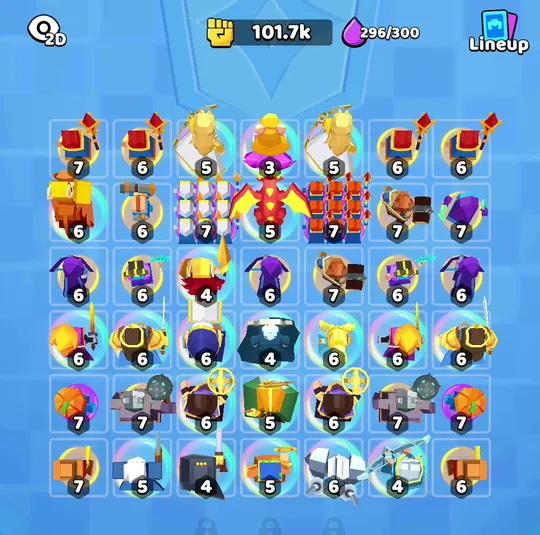 says 2D
✗ 3D view — models, no cards
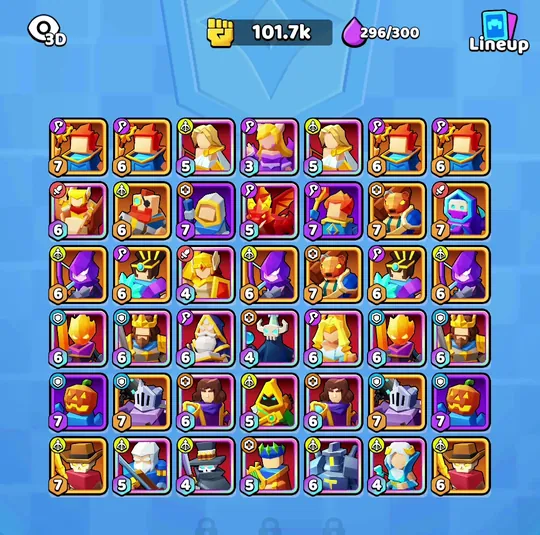 says 3D
✓ Card view — this is what to send
Same lineup, same power, same elixir — only the view differs.
Step 2
Screenshots that work
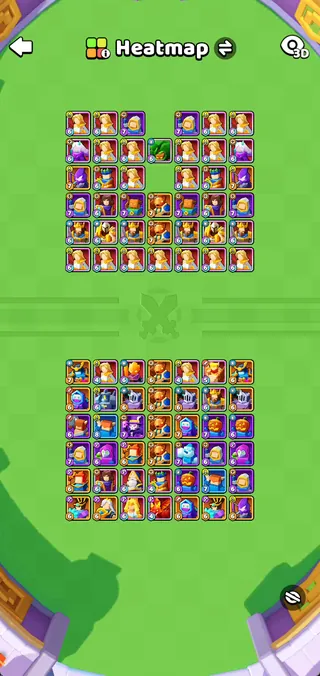
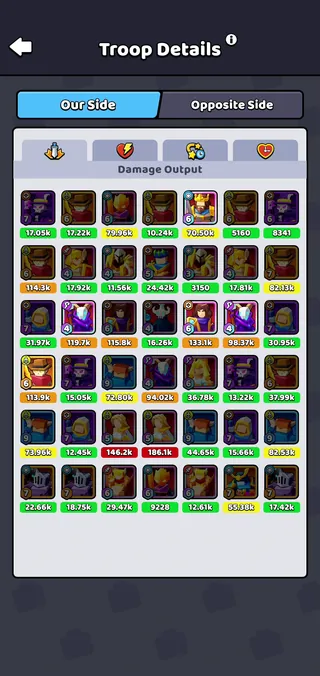
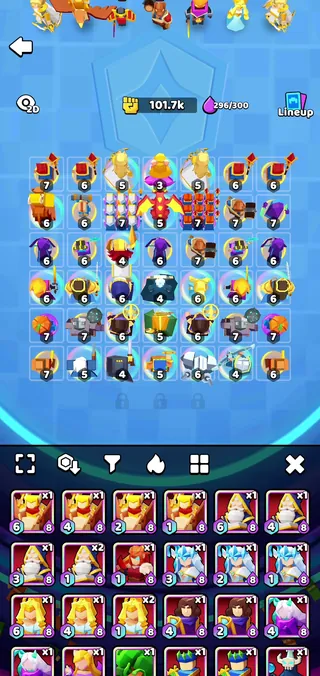
Several places in the game show a full formation grid — 7 columns across, 6 rows down — and they all work. You never need to crop: everything around the grid is ignored.
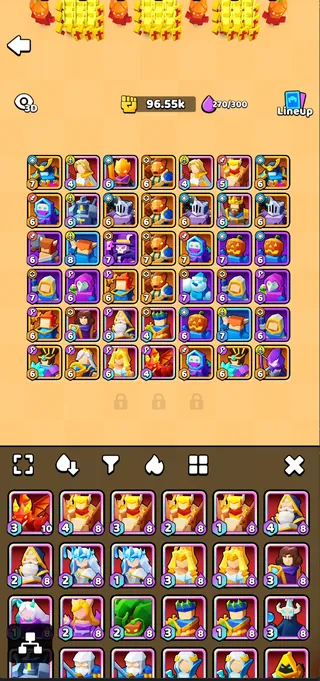 WORKS
WORKS
Deployment
Your own roster on the battlefield
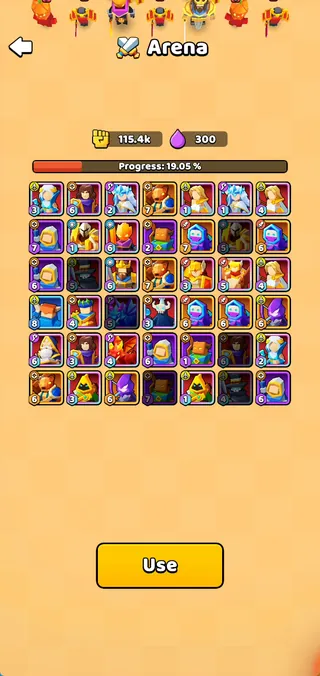 WORKS
WORKS
Arena / Lineup
Any saved-lineup detail view — dark cards are heroes you don't own
 WORKS
WORKS
Battle preview
Two grids — you pick a side when you upload (step 3)
 WORKS
WORKS
Battle result
Troop Details, either tab — Our Side or Opposite Side
 NO
NO
3D view
Models instead of cards — tap the 2D button first
 NO
NO
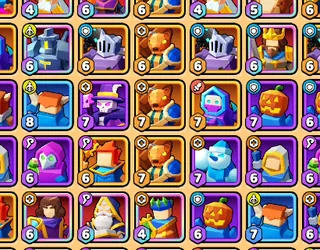
Not a full-screen capture
Rows and columns cut off — send the whole screen, uncropped
The "not a full-screen capture" tile is a real screenshot cropped on purpose, so you can see the failure rather than read about it.
Step 3
Upload and save
Take the screenshot in the game
Open any of the screens from step 2 and use your phone's normal screenshot button. Don't crop it, don't rotate it, don't resize it.
Upload it
Go to Tools → Import screenshot, then click the dashed box or drag your screenshot onto it. Hit Parse screenshot.
Wait about 10 seconds
The site finds the grid, cuts out each card, and identifies the hero and level on it. Usually 6–18 seconds.
Answer a few quick questions
Some cards are easy to misread — two heroes share a model and differ only in colour, and a 6 and an 8 look alike at badge size. Rather than guess, we show you the card and ask. Tap the right answer and it moves on by itself.
If none of the options is right, None of these opens the full hero list so you can pick the actual one.
Two grids? Pick a side
Battle-preview screenshots have your formation at the bottom and the enemy's at the top, so we show both and you choose. Three options: Import yours, Import enemy (as intel for counter-picking), or Import both as a battle, which also gives you a shareable battle page.
Fix anything that's wrong
The lineup opens in the builder with every card filled in. Tap any card to swap the hero or change the level. Nothing has been saved yet, so take your time.
Name it and save
Give it a name, pick what it's for, and choose whether it's private or public. Public lineups get a share link that unfurls into a picture on Discord, Reddit and X.
If something goes wrong
It says it couldn't find a grid
Almost always a cropped screenshot, or the battlefield being in 3D view. We need all 7 columns and all 6 rows in frame, drawn as cards. Re-shoot the full screen without cropping.
It picked the wrong hero
A few heroes use the same model in different colours, and those are the ones that slip through. Tap the card in the builder and pick the right hero — the fix takes a second, and your correction trains the reader, so it gets rarer over time.
The levels are wrong
Check the badge is actually visible on the card in your screenshot — a menu or a finger over the corner is enough to hide it. Correct any bad ones in the builder before saving.
It sat there and then said it took too long
The reader was busy or the image was very large. Wait a moment and upload again. If it keeps happening, tell us via the "Report a problem" link in the footer.
Screenshots you upload may be stored and used to improve hero recognition. See our privacy policy.